Version 0.4.1 · Modern JavaScript for Node.js 18+

Create XLSX files with JavaScript.

npm install @entree_pos/xlsx
report.js
import { createWorkbook } from "@entree_pos/xlsx";

const workbook = createWorkbook("Sales");
const sheet = workbook.sheet();

sheet.setData([
  ["Item", "Qty", "Price"],
  ["Burger", 2, 12.5],
  ["Fries", 1, 4]
]);

sheet.row(1).style({ bold: true });
sheet.column("C").style({ numberFormat: "$#,##0.00" });

await workbook.save("sales.xlsx");

Beginner · 1 minute

Create your first XLSX file

Complete example: 01-add-data.js
View source
import { createWorkbook } from "@entree_pos/xlsx";

const workbook = createWorkbook("People");
const sheet = workbook.sheet();

sheet.setData([
  ["Name", "Age"],
  ["Mina", 28],
  ["Noah", 34]
]);

await workbook.save("01-add-data.xlsx");
A simple worksheet containing names and ages
ResultDownload XLSX

Note

setData() starts at cell A1. Each inner array becomes one worksheet row.

Show advanced tip

Choose the sheet name

The name passed to createWorkbook("People") becomes the first worksheet tab.

Beginner · 2 minutes

Convert objects into rows

Complete example: 02-export-records.js
View source
import { createWorkbook } from "@entree_pos/xlsx";

const workbook = createWorkbook("Inventory");
const sheet = workbook.sheet();

const items = [
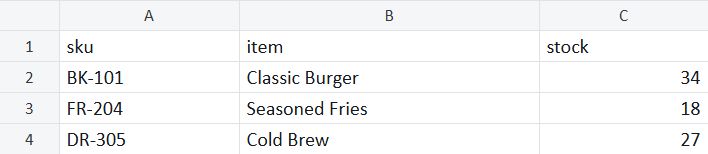
  { sku: "BK-101", item: "Classic Burger", stock: 34 },
  { sku: "FR-204", item: "Seasoned Fries", stock: 18 },
  { sku: "DR-305", item: "Cold Brew", stock: 27 }
];

sheet.setData(items);

await workbook.save("02-export-records.xlsx");
Inventory records exported with SKU, item, and stock headers
ResultDownload XLSX

Note

Object keys become the column headers. Use the same keys for every object to keep the rows consistent.

Show advanced tip

Prepare records first

Map database fields to clear column names before calling setData() when internal field names are not reader friendly.

Beginner · 2 minutes

Change cell values

Complete example: 03-change-cells.js
View source
import { createWorkbook } from "@entree_pos/xlsx";

const workbook = createWorkbook("Inventory");
const sheet = workbook.sheet();

sheet.setData([
  ["Item", "Stock"],
  ["Classic Burger", 34],
  ["Seasoned Fries", 18]
]);

// Change one existing cell.
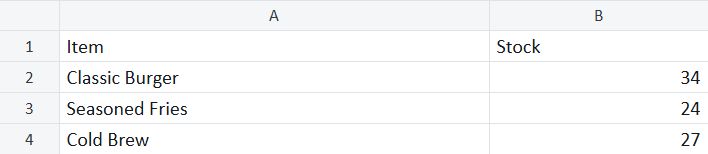
sheet.cell("B3").set(24);

// Add one more row.
sheet.cell("A4").set("Cold Brew");
sheet.cell("B4").set(27);

await workbook.save("03-change-cells.xlsx");
Inventory worksheet after changing one value and adding a row
ResultDownload XLSX

Note

A cell address combines a column letter and row number. For example, B3 refers to column B, row 3.

Show advanced tip

Read before changing

Use sheet.cell("B3").value when the new value depends on what is already in the cell.

Beginner · 2 minutes

Add another worksheet

Complete example: 04-multiple-sheets.js
View source
import { createWorkbook } from "@entree_pos/xlsx";

const workbook = createWorkbook("Products");

const products = workbook.sheet();
products.setData([
  ["Product", "Price"],
  ["Classic Burger", 12.5],
  ["Cold Brew", 3.5]
]);

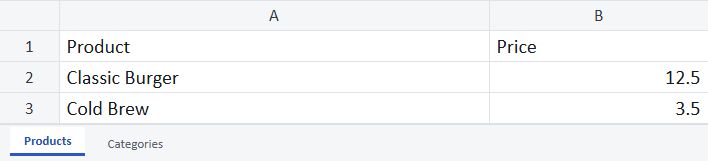
const categories = workbook.addSheet("Categories");
categories.setData([
  ["Category", "Products"],
  ["Food", 1],
  ["Drinks", 1]
]);

// Both sheets are saved in the same XLSX file.
await workbook.save("04-multiple-sheets.xlsx");
Workbook showing separate Products and Categories worksheet tabs
ResultDownload XLSX

Note

Worksheet names must be unique inside a workbook. Keep names short so their tabs remain easy to scan.

Show advanced tip

Add data immediately

workbook.addSheet("Categories", data) can create and populate a sheet in one call.

Beginner · 3 minutes

Apply styles

Complete example: 05-first-style.js
View source
import { createWorkbook } from "@entree_pos/xlsx";

const workbook = createWorkbook("Menu");
const sheet = workbook.sheet();

sheet.setData([
  ["Item", "Price"],
  ["Classic Burger", 12.5],
  ["Seasoned Fries", 4],
  ["Cold Brew", 3.5]
]);

// Style only the header row.
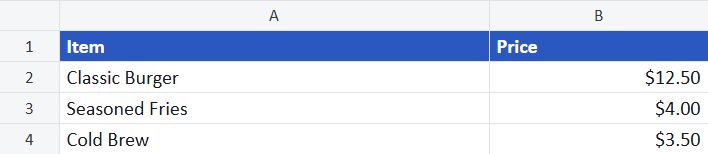
sheet.range("A1:B1").style({
  bold: true,
  color: "#FFFFFF",
  fill: "#2457C5"
});

// Format prices and make both columns readable.
sheet.range("B2:B4").style({ numberFormat: "$#,##0.00" });
sheet.setColumnWidth("A", 22);
sheet.setColumnWidth("B", 12);

await workbook.save("05-first-style.xlsx");
Simple menu worksheet with a blue header and currency prices
ResultDownload XLSX

Note

Keep numbers as numbers. A number format changes how Excel displays a value without turning it into text.

Show advanced tip

Reuse styles later

The next lesson replaces repeated style objects with named styles you can apply throughout the workbook.

Everyday helpers · 3 minutes

Find and update data

Common helper patterns
// Select the worksheet area you need.
const table = sheet.range("A1:C20");
const header = sheet.row(1);
const body = sheet.rows("2:20");
const prices = sheet.column("B");
const reportColumns = sheet.columns("A:C");

// Find one value inside the selected range.
const item = table.find("Classic Burger");

console.log(item?.address); // A2
item?.set("Deluxe Burger");

// Find and style every matching price.
const lowStock = prices.findAll(
  (cell) => typeof cell.value === "number" && cell.value <= 20
);

lowStock.forEach((cell) => {
  cell.style({ fill: "#FFF2D8" });
});

// Style complete rows or columns without creating empty cells.
header.style({ bold: true }).height(24);
body.style({ vertical: "center" });
prices.style({ numberFormat: "$#,##0.00" }).width(12);
reportColumns.width(18);
range("A1:C20")

Select a cell rectangle

Read, write, style, or search a specific rectangular area.

row(1)

Select one row

Search populated cells, apply a whole-row style, or set the row height.

rows("2:20")

Select multiple rows

Use a row range or an array such as [2, 5, 8].

column("B")

Target one column

Search populated cells, apply a whole-column style, or set the column width.

columns("A:C")

Select multiple columns

Use a column range or an array such as ["A", "C"].

Note

Every selection supports find(), findAll(), and forEach(). Search helpers return Cell objects; use optional chaining when a value may not exist.

Beginner · 6 minutes

Make the workbook look professional

Complete example: 06-reusable-styles.js
View source
import { createWorkbook } from "@entree_pos/xlsx";

const workbook = createWorkbook("Style Guide");
const sheet = workbook.sheet();

workbook.styles
  .define("header", {
    bold: true,
    color: "#FFFFFF",
    fill: "#2457C5",
    horizontal: "center"
  })
  .define("money", {
    numberFormat: "$#,##0.00;[Red]-$#,##0.00"
  })
  .define("success", {
    bold: true,
    color: "#2E7D5B",
    fill: "#E6F4ED",
    horizontal: "center"
  })
  .define("warning", {
    bold: true,
    color: "#A15C00",
    fill: "#FFF2D8",
    horizontal: "center"
  });

sheet.range("A1:C5").setValues([
  ["Item", "Price", "Status"],
  ["Classic Burger", 12.5, "Ready"],
  ["Seasoned Fries", 4, "Ready"],
  ["Cold Brew", 3.5, "Low stock"],
  ["Chocolate Cake", 7, "Ready"]
]);
sheet.range("A1:C1").style("header");
sheet.range("B2:B5").style("money");
sheet.cell("C2").style("success");
sheet.cell("C3").style("success");
sheet.cell("C4").style("warning");
sheet.cell("C5").style("success");
sheet.setColumnWidth("A", 24);
sheet.setColumnWidth("B", 14);
sheet.setColumnWidth("C", 16);

await workbook.save("06-reusable-styles.xlsx");
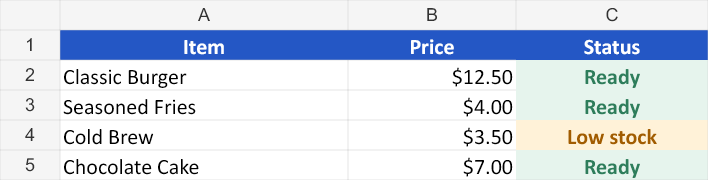
Worksheet demonstrating reusable label, money, success, and warning styles
ResultDownload XLSX

Note

Excel stores style records globally. Named styles keep large workbooks smaller and make visual changes easier to maintain.

Show advanced tip

Compose and copy styles

Style ranges with inside and outline borders, copy styles between cells, or clear selected properties without changing values.

Intermediate · 7 minutes

Add totals that recalculate in Excel

Complete example: 07-formulas-and-formats.js
View source
import { createWorkbook } from "@entree_pos/xlsx";

const workbook = createWorkbook("Invoice");
const sheet = workbook.sheet();

sheet.range("A1:D1").merge();
sheet.cell("A1").set("Invoice totals").style({
  bold: true,
  fontSize: 18,
  color: "#FFFFFF",
  fill: "#17202A",
  vertical: "center"
});
sheet.setRowHeight(1, 32);
sheet.range("A2:D2").merge();
sheet.cell("A2").set("Formulas remain formulas when the workbook opens in Excel.").style({
  color: "#5F6B7A",
  italic: true,
  vertical: "center"
});
sheet.setRowHeight(2, 24);

sheet.range("A4:D8").setValues([
  ["Item", "Quantity", "Price", "Total"],
  ["Classic Burger", 2, 12.5, null],
  ["Seasoned Fries", 1, 4, null],
  ["Cold Brew", 2, 3.5, null],
  ["Grand total", null, null, null]
]);
sheet.range("A4:D4").style({
  bold: true,
  color: "#FFFFFF",
  fill: "#2457C5",
  horizontal: "center",
  vertical: "center",
  border: { bottom: { style: "medium", color: "#17202A" } }
});
sheet.range("A4:D8").style({
  border: {
    outline: { style: "thin", color: "#CBD5E1" },
    inside: { style: "thin", color: "#CBD5E1" }
  }
});
sheet.cell("D5").formula("B5*C5", 25);
sheet.cell("D6").formula("B6*C6", 4);
sheet.cell("D7").formula("B7*C7", 7);
sheet.cell("D8").formula("SUM(D5:D7)", 36).style({
  bold: true,
  fill: "#E6F4ED"
});
sheet.range("C5:D8").style({ numberFormat: "$#,##0.00" });
sheet.range("A8:C8").style({ bold: true, fill: "#E6F4ED" });
sheet.setColumnWidth("A", 24);
sheet.setColumnWidth("B", 12);
sheet.setColumnWidth("C", 14);
sheet.setColumnWidth("D", 15);

await workbook.save("07-formulas-and-formats.xlsx");
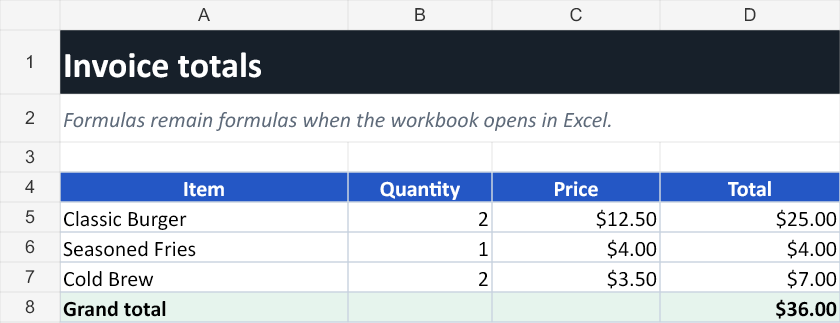
Invoice worksheet with formulas and currency formatted totals
ResultDownload XLSX

Note

The second argument to formula() is the cached value shown by previewers that do not calculate formulas. Excel recalculates the formula when opened.

Show advanced tip

Control calculated cells

Combine formulas with locked styles and worksheet protection to create controlled calculation models.

Intermediate · 8 minutes

Make the report easy to use

Complete example: 08-layout-and-filters.js
View source
import { createWorkbook } from "@entree_pos/xlsx";

const workbook = createWorkbook("Orders");
const sheet = workbook.sheet();

sheet.range("A1:E1").merge();
sheet.cell("A1").set("Open orders").style({
  bold: true,
  fontSize: 18,
  color: "#FFFFFF",
  fill: "#17202A",
  vertical: "center"
});
sheet.setRowHeight(1, 32);
sheet.range("A2:E2").merge();
sheet.cell("A2").set("A readable report with merged titles, filters, widths, and links.").style({
  color: "#5F6B7A",
  italic: true,
  vertical: "center"
});
sheet.setRowHeight(2, 24);

sheet.range("A4:E9").setValues([
  ["Order", "Customer", "Status", "Total", "Details"],
  [1041, "Ada Rivera", "Ready", 42.5, null],
  [1042, "Noah Patel", "Preparing", 31, null],
  [1043, "Mina Park", "Ready", 26.75, null],
  [1044, "Owen Brooks", "New", 18.5, null],
  [1045, "Lena Ortiz", "Preparing", 54, null]
]);
sheet.range("A4:E4").style({
  bold: true,
  color: "#FFFFFF",
  fill: "#2457C5",
  horizontal: "center",
  vertical: "center",
  border: { bottom: { style: "medium", color: "#17202A" } }
});
sheet.range("A4:E9").style({
  border: {
    outline: { style: "thin", color: "#CBD5E1" },
    inside: { style: "thin", color: "#CBD5E1" }
  }
});
sheet.range("D5:D9").style({ numberFormat: "$#,##0.00" });

for (let row = 5; row <= 9; row += 1) {
  const orderNumber = sheet.cell(`A${row}`).value;
  sheet.cell(`E${row}`)
    .set("Open order")
    .hyperlink(
      `https://example.com/orders/${orderNumber}`,
      "View order details"
    );
}

sheet.autoFilter("A4:E9");
sheet.setColumnWidth("A", 12);
sheet.setColumnWidth("B", 22);
sheet.setColumnWidth("C", 16);
sheet.setColumnWidth("D", 14);
sheet.setColumnWidth("E", 18);

await workbook.save("08-layout-and-filters.xlsx");

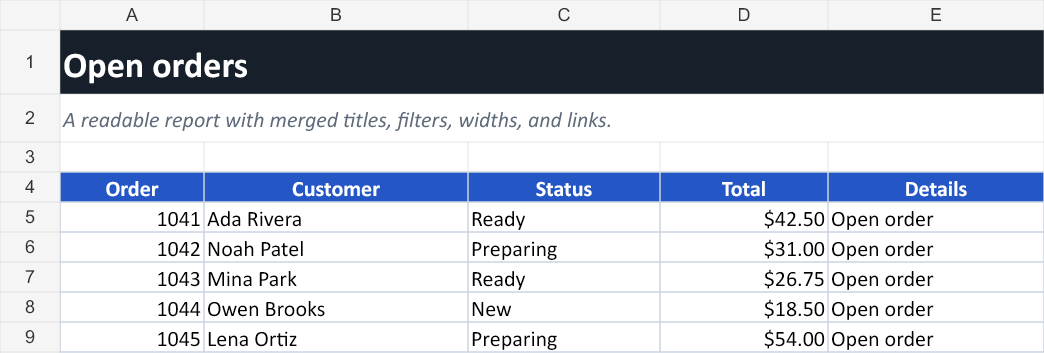
Open order report with clear headings, formatted totals, filters, and detail links
ResultDownload XLSX

Note

hyperlink() adds the destination and tooltip. Set the visible cell label separately so every spreadsheet viewer shows useful text.

Show advanced tip

Balance automatic and fixed widths

Use autoFit() for unknown data, then override important columns with explicit widths to keep reports predictable.

Intermediate · 10 minutes

Update an existing Excel template

Complete example: 09-edit-a-template.js
View source
import { createWorkbook, openWorkbook } from "@entree_pos/xlsx";

// This first block creates a small starter template so the example is runnable.
// In a real project, use the XLSX or XLSM template your team already owns.
const template = createWorkbook("Invoice");
const templateSheet = template.sheet();

templateSheet.range("A1:D1").merge();
templateSheet.cell("A1").set("INVOICE").style({
  bold: true,
  fontSize: 18,
  color: "#FFFFFF",
  fill: "#17202A",
  vertical: "center"
});
templateSheet.range("A2:D2").merge();
templateSheet.cell("A2").set("Fill the highlighted cells and keep the original design.").style({
  color: "#5F6B7A",
  italic: true,
  vertical: "center"
});

templateSheet.range("A4:D8").setValues([
  ["Item", "Quantity", "Price", "Total"],
  ["", null, null, null],
  ["", null, null, null],
  ["", null, null, null],
  ["Grand total", null, null, null]
]);
templateSheet.range("A4:D4").style({
  bold: true,
  color: "#FFFFFF",
  fill: "#2457C5",
  horizontal: "center",
  vertical: "center",
  border: { bottom: { style: "medium", color: "#17202A" } }
});
templateSheet.range("A4:D8").style({
  border: {
    outline: { style: "thin", color: "#CBD5E1" },
    inside: { style: "thin", color: "#CBD5E1" }
  }
});
templateSheet.range("A5:C7").style({ fill: "#FFF2D8" });
templateSheet.range("C5:D8").style({ numberFormat: "$#,##0.00" });
templateSheet.range("A8:D8").style({ bold: true, fill: "#EAF0FF" });
templateSheet.setColumnWidth("A", 24).setColumnWidth("B", 12);
templateSheet.setColumnWidth("C", 14).setColumnWidth("D", 15);
await template.save("09-invoice-template.xlsx");

// Open the template and change only its data and formulas.
const workbook = await openWorkbook("09-invoice-template.xlsx");
const sheet = workbook.sheet("Invoice");

sheet.range("A5:C7").setValues([
  ["Lunch catering", 12, 18.5],
  ["Coffee service", 12, 3.25],
  ["Delivery", 1, 25]
]);
sheet.cell("D5").formula("B5*C5", 222);
sheet.cell("D6").formula("B6*C6", 39);
sheet.cell("D7").formula("B7*C7", 25);
sheet.cell("D8").formula("SUM(D5:D7)", 286);

await workbook.save("09-edit-a-template.xlsx");
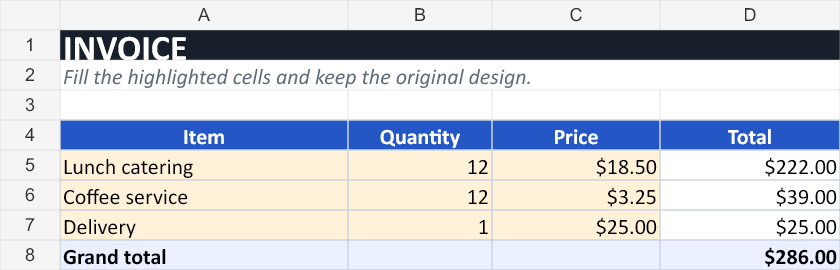
Completed invoice created by editing a styled workbook template
ResultDownload XLSX

Note

The example creates a small starter template first so it runs by itself. In production, begin with the XLSX or XLSM template your team already owns and keep only the second half of the code.

Show advanced tip

Preserve complex workbook parts

The library patches changed OOXML parts and preserves untouched images, VBA, form controls, and unknown extensions in XLSX and XLSM files.

Intermediate · 6 minutes

Format cell values

Complete example: 10-format-dates-and-percentages.js
View source
import { createWorkbook } from "@entree_pos/xlsx";

const workbook = createWorkbook("Campaigns");
const sheet = workbook.sheet();

sheet.setData([
  ["Campaign", "Start date", "Conversion", "Budget"],
  ["Lunch launch", new Date("2026-09-01T12:00:00Z"), 0.184, 1250],
  ["Fall catering", new Date("2026-10-15T12:00:00Z"), 0.126, 2400],
  ["Holiday cards", new Date("2026-11-20T12:00:00Z"), 0.219, 980]
]);

sheet.range("A1:D1").style({
  bold: true,
  color: "#FFFFFF",
  fill: "#2457C5"
});
sheet.range("B2:B4").style({ numberFormat: "mmm d, yyyy" });
sheet.range("C2:C4").style({ numberFormat: "0.0%" });
sheet.range("D2:D4").style({ numberFormat: "$#,##0" });
sheet.setColumnWidth("A", 22);
sheet.setColumnWidth("B", 18);
sheet.setColumnWidth("C", 14);
sheet.setColumnWidth("D", 14);

await workbook.save("10-format-dates-and-percentages.xlsx");
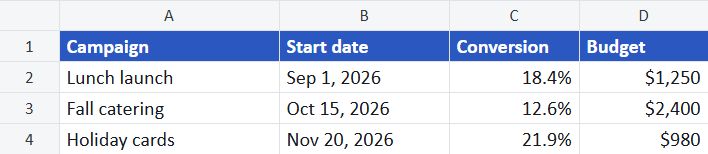
Campaign worksheet with formatted dates, percentages, and currency values
ResultDownload XLSX

Note

Store percentages as decimal values. For example, 0.184 displays as 18.4% with the 0.0% format.

Show advanced tip

Keep dates sortable

Write JavaScript Date objects and apply a date number format. Excel keeps the underlying date value for sorting and formulas.

Advanced · 12 minutes

Turn worksheet data into a chart

Complete example: 11-create-a-chart.js
View source
import { createWorkbook } from "@entree_pos/xlsx";

const workbook = createWorkbook("Sales");
const sheet = workbook.sheet();

sheet.range("A1:H1").merge();
sheet.cell("A1").set("Monthly revenue").style({
  bold: true,
  fontSize: 18,
  color: "#FFFFFF",
  fill: "#17202A",
  vertical: "center"
});
sheet.setRowHeight(1, 32);
sheet.range("A2:H2").merge();
sheet.cell("A2").set("The chart references worksheet cells, so Excel can refresh it after edits.").style({
  color: "#5F6B7A",
  italic: true,
  vertical: "center"
});
sheet.setRowHeight(2, 24);

sheet.range("A4:B9").setValues([
  ["Month", "Revenue"],
  ["January", 18400],
  ["February", 21350],
  ["March", 20100],
  ["April", 24750],
  ["May", 26800]
]);
sheet.range("A4:B4").style({
  bold: true,
  color: "#FFFFFF",
  fill: "#2457C5",
  horizontal: "center",
  vertical: "center",
  border: { bottom: { style: "medium", color: "#17202A" } }
});
sheet.range("A4:B9").style({
  border: {
    outline: { style: "thin", color: "#CBD5E1" },
    inside: { style: "thin", color: "#CBD5E1" }
  }
});
sheet.range("B5:B9").style({ numberFormat: "$#,##0" });
sheet.setColumnWidth("A", 15);
sheet.setColumnWidth("B", 15);

const chart = workbook.charts.add({
  sheet: "Sales",
  name: "RevenueTrend",
  type: "line",
  title: "Monthly revenue",
  range: "A4:B9",
  position: { from: "D4", to: "K18" },
  legend: false
});

await workbook.save("11-create-a-chart.xlsx");
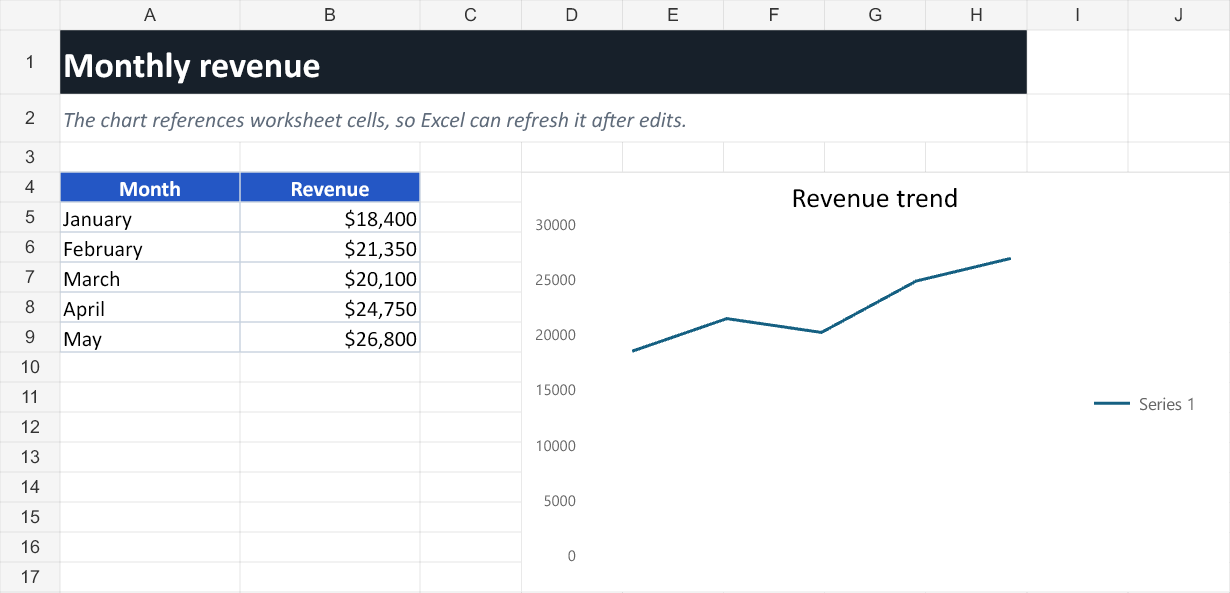
Monthly revenue worksheet with a line chart positioned beside the data
ResultDownload XLSX

Note

The source range needs a header row and numeric values. Choose a chart type that matches the question, not just the shape of the data.

Show advanced tip

Edit charts after creation

Column, bar, line, pie, and scatter charts are supported. List existing charts, update them by ID, or remove them from a template.

Advanced · 12 minutes

Edit a chart without rebuilding it

Complete example: 12-edit-a-chart.js
View source
import { createWorkbook } from "@entree_pos/xlsx";

const workbook = createWorkbook("Sales");
const sheet = workbook.sheet();

sheet.range("A1:H1").merge();
sheet.cell("A1").set("Monthly revenue").style({
  bold: true,
  fontSize: 18,
  color: "#FFFFFF",
  fill: "#17202A",
  vertical: "center"
});
sheet.setRowHeight(1, 32);
sheet.range("A2:H2").merge();
sheet.cell("A2").set("The chart references worksheet cells, so Excel can refresh it after edits.").style({
  color: "#5F6B7A",
  italic: true,
  vertical: "center"
});
sheet.setRowHeight(2, 24);

sheet.range("A4:B9").setValues([
  ["Month", "Revenue"],
  ["January", 18400],
  ["February", 21350],
  ["March", 20100],
  ["April", 24750],
  ["May", 26800]
]);
sheet.range("A4:B4").style({
  bold: true,
  color: "#FFFFFF",
  fill: "#2457C5",
  horizontal: "center",
  vertical: "center",
  border: { bottom: { style: "medium", color: "#17202A" } }
});
sheet.range("A4:B9").style({
  border: {
    outline: { style: "thin", color: "#CBD5E1" },
    inside: { style: "thin", color: "#CBD5E1" }
  }
});
sheet.range("B5:B9").style({ numberFormat: "$#,##0" });
sheet.setColumnWidth("A", 15);
sheet.setColumnWidth("B", 15);

const chart = workbook.charts.add({
  sheet: "Sales",
  name: "RevenueTrend",
  type: "column",
  title: "Monthly revenue",
  range: "A4:B9",
  position: { from: "D4", to: "K18" },
  legend: false
});

// Charts can be edited later without rebuilding their source data.
workbook.charts.update(chart.id, {
  type: "line",
  title: "Revenue trend",
  range: "A4:B9"
});

await workbook.save("12-edit-a-chart.xlsx");
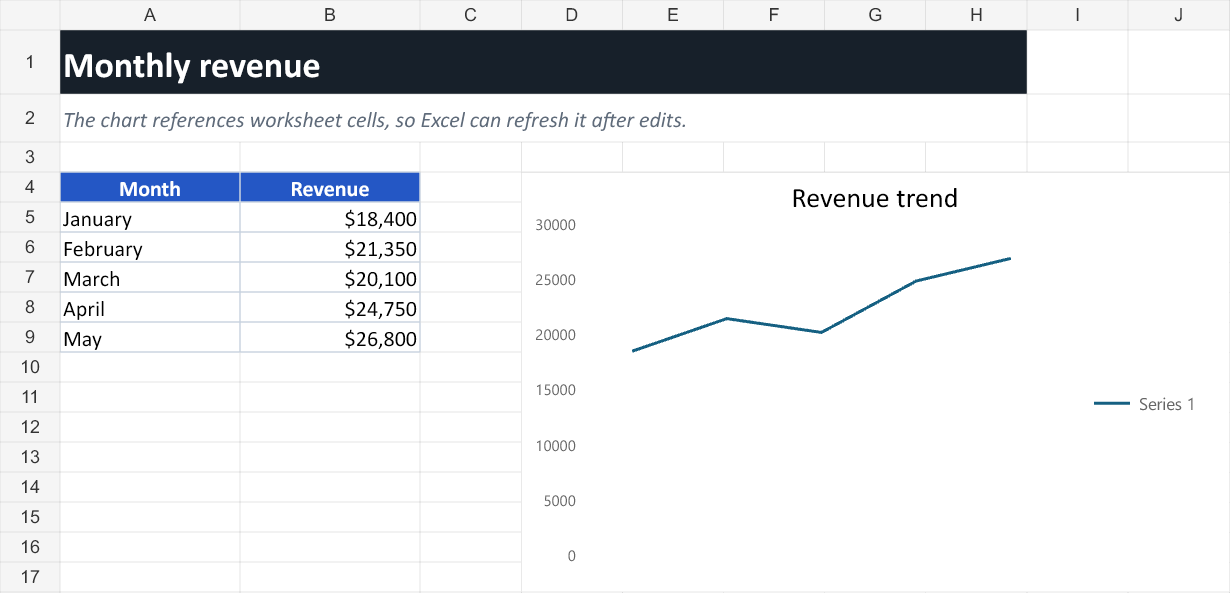
Revenue chart after changing a column chart into a line chart
ResultDownload XLSX

Note

Keep the chart ID returned by charts.add(). When opening a template, use charts.list() to find existing chart IDs first.

Show advanced tip

Update only what changed

charts.update() can change selected chart properties while leaving its position and other settings intact.

Advanced · 15 minutes

Summarize many rows with a PivotTable

Complete example: 13-create-a-pivot-table.js
View source
import { createWorkbook } from "@entree_pos/xlsx";

const workbook = createWorkbook("Orders");
const source = workbook.sheet();
const summary = workbook.addSheet("Summary");

source.setData([
  { region: "North", category: "Drinks", sales: 180 },
  { region: "North", category: "Food", sales: 420 },
  { region: "South", category: "Drinks", sales: 220 },
  { region: "South", category: "Food", sales: 510 },
  { region: "West", category: "Drinks", sales: 260 },
  { region: "West", category: "Food", sales: 390 }
]);
source.range("A1:C1").style({
  bold: true,
  color: "#FFFFFF",
  fill: "#2457C5",
  horizontal: "center",
  vertical: "center",
  border: { bottom: { style: "medium", color: "#17202A" } }
});
source.range("A1:C7").style({
  border: {
    outline: { style: "thin", color: "#CBD5E1" },
    inside: { style: "thin", color: "#CBD5E1" }
  }
});
source.range("C2:C7").style({ numberFormat: "$#,##0" });
source.autoFit({ min: 12, max: 22, padding: 3 });

summary.range("A1:F1").merge();
summary.cell("A1").set("Sales by region").style({
  bold: true,
  fontSize: 18,
  color: "#FFFFFF",
  fill: "#17202A",
  vertical: "center"
});
summary.setRowHeight(1, 32);
summary.range("A2:F2").merge();
summary.cell("A2").set("Native PivotTable with cached values and refresh-on-open support.").style({
  color: "#5F6B7A",
  italic: true,
  vertical: "center"
});
summary.setRowHeight(2, 24);

workbook.pivotTables.add({
  name: "SalesByRegion",
  source: { sheet: "Orders", range: "A1:C7" },
  target: { sheet: "Summary", cell: "A4" },
  rows: ["region"],
  columns: ["category"],
  filters: [],
  values: [
    { field: "sales", summarize: "sum", name: "Total sales" }
  ],
  showGrandTotals: true,
  refreshOnLoad: true,
  style: "PivotStyleMedium9"
});

summary.setColumnWidth("A", 28);
summary.setColumnWidth("B", 18);
summary.setColumnWidth("C", 18);
summary.setColumnWidth("D", 22);

await workbook.save("13-create-a-pivot-table.xlsx");
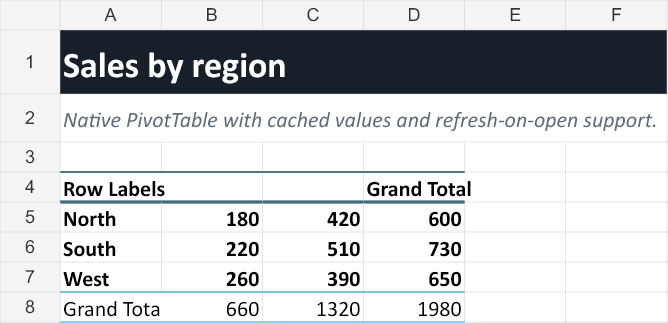
Sales summary grouped by region and category with grand totals
ResultDownload XLSX

Note

PivotTables rely on stable source headers. Excel refreshes the native pivot on open; lightweight preview tools may show only its cached values.

Show advanced tip

Change the analysis

Add filters, change row and column fields, or summarize with sum, count, average, minimum, and maximum.

Advanced · 18 minutes

Protect editable cells and formulas

Complete example: 14-protect-a-sheet.js
View source
import { createWorkbook } from "@entree_pos/xlsx";

const workbook = createWorkbook("Private Report");
const sheet = workbook.sheet();

sheet.range("A1:D1").merge();
sheet.cell("A1").set("Private sales report").style({
  bold: true,
  fontSize: 18,
  color: "#FFFFFF",
  fill: "#17202A",
  vertical: "center"
});
sheet.setRowHeight(1, 32);
sheet.range("A2:D2").merge();
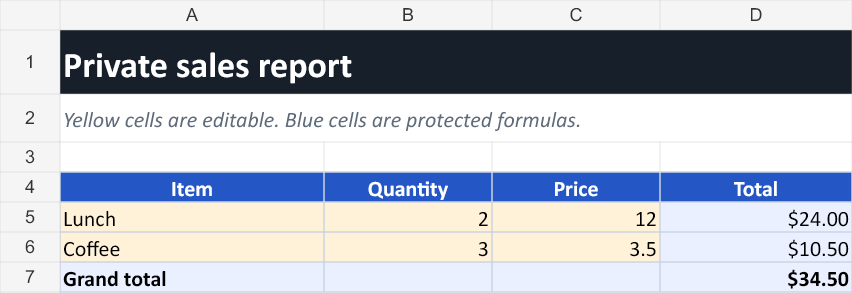
sheet.cell("A2").set("Yellow cells are editable. Blue cells are protected formulas.").style({
  color: "#5F6B7A",
  italic: true,
  vertical: "center"
});
sheet.setRowHeight(2, 24);

sheet.range("A4:D7").setValues([
  ["Item", "Quantity", "Price", "Total"],
  ["Lunch", 2, 12, null],
  ["Coffee", 3, 3.5, null],
  ["Grand total", null, null, null]
]);
sheet.range("A4:D4").style({
  bold: true,
  color: "#FFFFFF",
  fill: "#2457C5",
  horizontal: "center",
  vertical: "center",
  border: { bottom: { style: "medium", color: "#17202A" } }
});
sheet.range("A4:D7").style({
  border: {
    outline: { style: "thin", color: "#CBD5E1" },
    inside: { style: "thin", color: "#CBD5E1" }
  }
});
sheet.range("A5:C6").style({
  fill: "#FFF2D8",
  protection: { locked: false }
});
sheet.cell("D5").formula("B5*C5", 24).style({
  fill: "#EAF0FF",
  numberFormat: "$#,##0.00"
});
sheet.cell("D6").formula("B6*C6", 10.5).style({
  fill: "#EAF0FF",
  numberFormat: "$#,##0.00"
});
sheet.cell("D7").formula("SUM(D5:D6)", 34.5).style({
  bold: true,
  fill: "#EAF0FF",
  numberFormat: "$#,##0.00"
});
sheet.range("A7:C7").style({ bold: true, fill: "#EAF0FF" });
sheet.protectSheet({
  password: "demo",
  selectUnlockedCells: true,
  formatCells: false
});
workbook.protectStructure({ password: "demo", structure: true });
sheet.setColumnWidth("A", 22);
sheet.setColumnWidth("B", 14);
sheet.setColumnWidth("C", 14);
sheet.setColumnWidth("D", 16);

await workbook.save("14-protect-a-sheet.xlsx");
Protected sales report with yellow input cells and blue formula cells
Result · protection password: demoDownload XLSX

Note

Worksheet and workbook protection control ordinary editing in Excel. They do not encrypt the file contents.

Show advanced tip

Choose allowed actions

Protection options can allow selecting unlocked cells while preventing formatting, row changes, and edits to locked formulas.

Advanced · 5 minutes

Require a password to open the workbook

Complete example: 15-encrypt-a-workbook.js
View source
import { createWorkbook } from "@entree_pos/xlsx";

const workbook = createWorkbook("Private Balances");
const sheet = workbook.sheet();

sheet.setData([
  ["Account", "Balance"],
  ["River Cafe", 1250],
  ["North Market", 840],
  ["Park Bistro", 2175]
]);
sheet.range("A1:B1").style({
  bold: true,
  color: "#FFFFFF",
  fill: "#2457C5"
});
sheet.range("B2:B4").style({ numberFormat: "$#,##0.00" });
sheet.setColumnWidth("A", 22);
sheet.setColumnWidth("B", 16);

// Excel asks for this password before opening the file.
await workbook.save("15-encrypt-a-workbook.xlsx", {
  password: "demo"
});
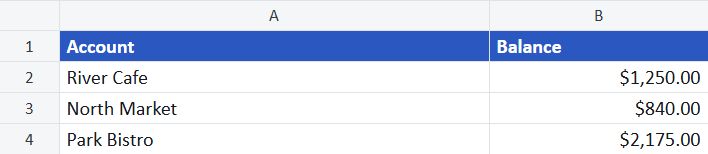
Private account balance worksheet protected by an open password
Result · open password: demoDownload XLSX

Note

Do not hardcode real passwords in source control. Read them from a secret manager or environment variable in production.

Show advanced tip

Open encrypted files again

Use openWorkbook("private.xlsx", { password: "demo" }) when reading an encrypted workbook.

Advanced · 5 minutes

Send an XLSX file by email

Complete example: 16-send-xlsx-email.js
View source
// npm install @entree_pos/xlsx nodemailer
import { createWorkbook } from "@entree_pos/xlsx";
import nodemailer from "nodemailer";

const workbook = createWorkbook("Daily Sales");
const sheet = workbook.sheet();

sheet.setData([
  ["Item", "Quantity", "Sales"],
  ["Classic Burger", 24, 300],
  ["Seasoned Fries", 18, 72],
  ["Cold Brew", 15, 67.5]
]);
sheet.row(1).style({ bold: true, fill: "#2457C5", color: "#FFFFFF" });
sheet.column("C").style({ numberFormat: "$#,##0.00" });
sheet.autoFit();

// Keep the XLSX in memory. Nodemailer accepts a Buffer as attachment content.
const xlsx = workbook.toBuffer();

const mailer = nodemailer.createTransport({
  host: process.env.SMTP_HOST,
  port: Number(process.env.SMTP_PORT ?? 587),
  secure: process.env.SMTP_PORT === "465",
  auth: {
    user: process.env.SMTP_USER,
    pass: process.env.SMTP_PASSWORD
  }
});

await mailer.sendMail({
  from: process.env.EMAIL_FROM,
  to: "manager@example.com",
  subject: "Daily sales report",
  text: "The daily sales workbook is attached.",
  attachments: [{
    filename: "daily-sales.xlsx",
    content: xlsx,
    contentType: "application/vnd.openxmlformats-officedocument.spreadsheetml.sheet"
  }]
});

Note

toBuffer() creates the XLSX in memory. Nodemailer sends that buffer directly, so no temporary file is needed.

Need a browser Blob?

Create a Blob for browser APIs

Use new Blob([workbook.toUint8Array()], { type: "application/vnd.openxmlformats-officedocument.spreadsheetml.sheet" }).

Core API

Search the complete API
01

Create and save

createWorkbook(name?)Create a workbook.01
openWorkbook(source, options?)Open an existing workbook.10
workbook.sheet(reference?)Get a worksheet.01
workbook.addSheet(name, data?)Add another worksheet.04
workbook.save(path, options?)Save the XLSX file.01
workbook.toBuffer(options?)Create XLSX bytes in memory.17
sheet.setData(data, options?)Write a complete dataset.01
02

Select and update

sheet.get(address)Read a cell value.03
sheet.set(address, value)Change a cell value.03
sheet.cell(address)Work with one cell.03
sheet.range(address)Select a rectangle.05
sheet.row(row)Select one row.06
sheet.rows(selector)Select multiple rows.06
sheet.column(column)Select one column.06
sheet.columns(selector)Select multiple columns.06
03

Format and read

cell.style(style, mode?)Format one cell.07
cell.formula(formula, result?)Add a formula.08
range.style(style, mode?)Format a cell range.05
sheet.find(matcher)Find a populated cell.06
sheet.autoFit(options?)Fit columns to values.09
sheet.merge(range)Merge a cell range.10
sheet.toRecords(options?)Read rows as objects.API
sheet.toHtml(options?)Create an HTML table.API

API cheatsheet

Find the method for the job.

Start with data, move through formatting and analysis, then reach for advanced access only when the public methods do not cover the workbook part you need. Hover or focus a parameter to see its type. Object parameters also show accepted properties, defaults, and a copy-ready example.

01Create, open, and save9 APIs
APIDescriptionExample
createWorkbook(name?)Create a workbook with one named sheet.Lesson 1
openWorkbook(source, options?)Open a path, URL, or binary workbook asynchronously.Lesson 10
openWorkbookSync(path, options?)Open a local workbook with synchronous file access.API example
parseWorkbook(bytes, options?)Parse workbook bytes already held in memory.API example
workbook.save(path, options?)Write an XLSX or XLSM file asynchronously.Lesson 1
workbook.saveSync(path, options?)Write an XLSX or XLSM file synchronously.API example
workbook.toBuffer(options?)Return Node.js Buffer output for storage or HTTP responses.API example
workbook.toUint8Array(options?)Return portable binary output as a Uint8Array.API example
workbook.toBase64(options?)Return Base64 output for text based transport.API example
02Workbooks and sheets12 APIs
APIDescriptionExample
workbook.sheet(reference?)Get a sheet by name or zero-based index, or throw if missing.Lesson 1
workbook.findSheet(reference?)Get a sheet when present, otherwise return undefined.API example
workbook.addSheet(name, data?)Add a sheet and optionally fill it with data.Lesson 4
workbook.renameSheet(reference, name)Rename a sheet while preserving its content.API example
workbook.removeSheet(reference)Remove a sheet while keeping at least one sheet.API example
workbook.sheetNamesRead sheet names in workbook order.API example
workbook.sheetCountRead the number of sheets.API example
workbook.propertiesRead or merge title, author, and document metadata.API example
workbook.stylesAccess reusable named style definitions.Lesson 7
workbook.chartsAccess chart creation and editing methods.Lesson 12
workbook.pivotTablesAccess native PivotTable creation and editing methods.Lesson 14
workbook.toJSON(options?)Convert every sheet to arrays of record objects.API example
03Write and read data36 APIs
APIDescriptionExample
sheet.setData(data, options?)Replace current cell data and write a complete dataset from A1.Lesson 1
sheet.appendData(records, options?)Append object records using the existing header order.API example
sheet.appendRows(rows, options?)Append positional rows or write rows at a chosen origin.API example
sheet.get(address)Read a cell value directly.API example
sheet.set(address, value)Set a cell value and keep chaining worksheet methods.Lesson 3
sheet.cell(address)Get a Cell object for values, formulas, styles, and links.Lesson 3
sheet.range(address)Get a rectangular Range object.Lesson 5
sheet.column(column)Get a helper for searching, styling, and sizing one column.Lesson 6
sheet.columns(selector)Get a helper for a column range or selected columns.Lesson 6
sheet.row(row)Get a helper for searching, styling, and sizing one row.Lesson 6
sheet.rows(selector)Get a helper for a row range or selected rows.Lesson 6
sheet.find(matcher)Find the first matching populated cell in the worksheet.Lesson 6
sheet.findAll(matcher)Find every matching populated cell in the worksheet.Lesson 6
sheet.toRows(options?)Read a sheet region as arrays of values.API example
sheet.toRecords(options?)Read rows as objects keyed by the header row.API example
sheet.toCsv(options?)Export a sheet region as CSV or delimiter separated text.API example
sheet.toHtml(options?)Export a sheet region as an escaped HTML table.API example
sheet.insertRows(before, count?, options?)Insert rows and shift values, formulas, merges, and row data.API example
sheet.deleteRows(start, count?)Delete rows and shift following rows upward.API example
sheet.copyRow(source, target, options?)Copy a row and adjust relative formula references.API example
range.getValues()Read a rectangular array of values.API example
range.setValues(rows)Write a rectangular array of values.Lesson 9
range.find(matcher)Find the first matching populated cell in a range.Lesson 6
range.findAll(matcher)Find every matching populated cell in a range.Lesson 6
column.find(matcher)Find the first matching populated cell in a column.Lesson 6
column.findAll(matcher)Find every matching populated cell in a column.Lesson 6
column.forEach(callback)Visit populated cells in a column from top to bottom.Lesson 6
columns.find(matcher)Find the first matching cell across selected columns.Lesson 6
columns.findAll(matcher)Find every matching cell across selected columns.Lesson 6
columns.forEach(callback)Visit populated cells across selected columns in row order.Lesson 6
row.find(matcher)Find the first matching populated cell in a row.Lesson 6
row.findAll(matcher)Find every matching populated cell in a row.Lesson 6
row.forEach(callback)Visit populated cells in a row from left to right.Lesson 6
rows.find(matcher)Find the first matching cell across selected rows.Lesson 6
rows.findAll(matcher)Find every matching cell across selected rows.Lesson 6
rows.forEach(callback)Visit populated cells across selected rows in row order.Lesson 6
04Style and lay out reports26 APIs
APIDescriptionExample
cell.style(style, mode?)Apply a named style, style object, or composed style list.Lesson 7
range.style(style, mode?)Apply styles across a range with position aware borders.Lesson 5
column.style(style, mode?)Style an entire Excel column without creating empty cells.Lesson 6
column.width(width)Set the Excel character-based width for a column.Lesson 6
columns.style(style, mode?)Style selected Excel columns without creating empty cells.Lesson 6
columns.width(width)Set the same width for selected columns.Lesson 6
row.style(style, mode?)Apply a native whole-row style.Lesson 6
row.height(height)Set a row height in points.Lesson 6
rows.style(style, mode?)Apply a native style to selected rows.Lesson 6
rows.height(height)Set the same height for selected rows.Lesson 6
styles.define(name, style, options?)Create or replace one reusable named style.Lesson 7
styles.defineMany(definitions)Create several related styles atomically.API example
styles.get(name)Read a fully resolved named style.API example
styles.getDefinition(name)Inspect the stored style and its parent names.API example
styles.list()List every stored named style definition.API example
styles.remove(name)Remove an unused named style.API example
cell.copyStyleFrom(source, mode?)Copy formatting from another cell.API example
range.copyStyleFrom(source, options?)Copy formatting from another range.API example
cell.clearStyle(parts?)Remove all or selected cell formatting.API example
cell.numberFormat(format)Apply an Excel number format string.Lesson 11
sheet.autoFit(options?)Estimate practical column widths from current values.Lesson 9
sheet.setColumnWidth(column, width)Set an exact Excel column width.Lesson 5
sheet.setRowHeight(row, height)Set an exact row height in points.Lesson 9
sheet.merge(range)Merge cells in a range.Lesson 10
sheet.unmerge(range)Remove an exact merged range.API example
sheet.autoFilter(range?)Add Excel filter controls to a data range.Lesson 9
05Formulas, charts, and PivotTables12 APIs
APIDescriptionExample
cell.formula(formula, result?)Store a formula and optional cached result.Lesson 8
cell.hyperlink(target, tooltip?)Add a web, file, or internal workbook link.API example
charts.add(options)Create a column, bar, line, pie, or scatter chart.Lesson 12
charts.list(sheet?)Inspect charts in one sheet or the whole workbook.Lesson 13
charts.update(reference, changes)Change chart data, type, title, name, or position.API example
charts.remove(reference)Remove a chart and its package parts.API example
pivotTables.add(config)Create a native PivotTable and cached worksheet result.Lesson 14
pivotTables.list(sheet?)Inspect PivotTables in one sheet or the workbook.Lesson 14
pivotTables.update(reference, changes)Rebuild a PivotTable with changed fields or summary rules.API example
pivotTables.remove(reference)Remove a PivotTable, cache, and relationships.API example
range.forEach(callback)Visit each Cell in a range with row and column offsets.API example
cell.clear(options?)Clear a cell while optionally keeping its style.API example
06Protect and inspect7 APIs
APIDescriptionExample
sheet.protectSheet(options?)Control which worksheet edits Excel allows.Lesson 15
sheet.unprotectSheet()Remove worksheet editing protection.API example
workbook.protectStructure(options?)Prevent ordinary sheet structure changes in Excel.Lesson 15
workbook.unprotectStructure()Remove workbook structure protection.API example
workbook.save(path, { password })Encrypt file contents with Excel compatible AES-256.Lesson 16
sheet.unsafeRawAccess the internal worksheet record as an unstable escape hatch.API example
cell.unsafeRawAccess the internal cell record as an unstable escape hatch.API example

Need style property names, encryption helpers, or every option? Open the complete API reference.